
Live Streaming Component
Relevant source files
The following files were used as context for generating this wiki page:
The Live Streaming Component enables users to watch Bilibili live streams directly within the BiliChrome extension. This document details the architecture, functionality, and implementation of the live streaming feature, including the video player, real-time comment (danmu) system, and API integration. For information about the standard video playback functionality (for non-live content), see Video Player Component.
Overview
The Live Streaming Component provides a compact yet feature-rich interface for viewing Bilibili live streams. It handles video streaming using HLS.js, displays real-time comments, and offers standard playback controls such as quality selection and picture-in-picture mode.
The component is implemented as a standalone class (LivePlayer) that manages its own state, UI elements, and API interactions.
Architecture
Below is a diagram illustrating the architecture of the Live Streaming Component and its interactions with other parts of the system:

Sources: js/components/live_player.js:1-197
Component Interface
The Live Player exposes the following public methods:
| Method | Description |
|---|---|
open(options) | Opens the live player with the specified room ID |
close() | Closes the player and resets the state |
toggleDanmu() | Enables/disables real-time comments |
togglePictureInPicture() | Activates picture-in-picture mode |
toggleQuality() | Switches between video quality levels |
Sources: js/components/live_player.js:128-196
Core Functionality
Player Initialization
The LivePlayer class initializes with references to UI elements, default configuration, and event listeners for player controls.
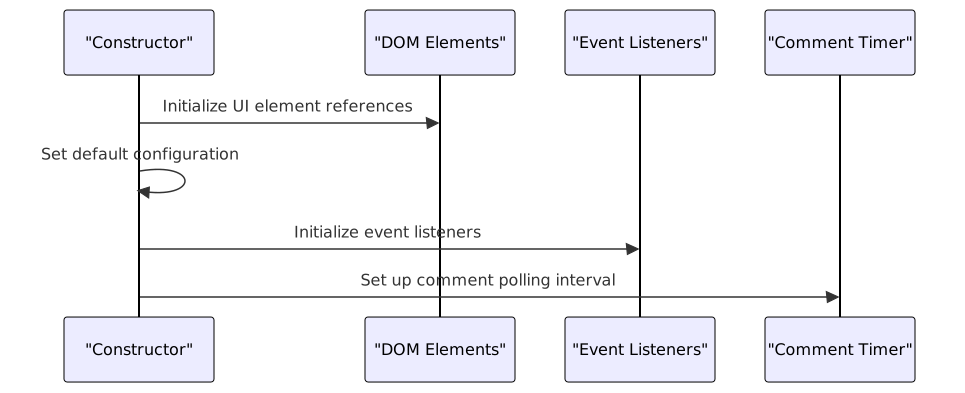
Sources: js/components/live_player.js:1-36
Stream Loading Process
When a user navigates to a live stream (via URL hash #roomid_*), the following sequence occurs:
- The route controller detects the live room ID and calls
LivePlayer.open() - The player fetches room information from Bilibili's API
- Stream URL is retrieved based on selected quality
- HLS.js loads and plays the stream
- Real-time comments begin loading in the background

Sources: js/components/live_player.js:104-156
Real-time Comment (Danmu) System
The live player includes a real-time comment system that polls Bilibili's API at regular intervals. Comments are displayed in the #live_commentArea element as they arrive.
Key features:
- Configurable polling frequency (
danmuReqFrequency) - Maximum comment display limit (
danmuMaxSum) - Deduplication of comments using IDs
- Animated comment rendering
The comment fetching and display process:

Sources: js/components/live_player.js:50-101
Stream Quality Control
The live player supports multiple quality levels for video streaming. The quality setting is stored in the config.quality property and is used when requesting the stream URL from Bilibili's API.
Supported quality values:
- 2: Fluent (流畅)
- 3: High definition (high quality, default)
- 4: Original quality (原画)
When the quality is changed via toggleQuality(), the player reloads the stream with the new quality setting.
Sources: js/components/live_player.js:185-196
UI Elements
The live player consists of several key UI elements:
| Element ID | Description |
|---|---|
#live_container | Main container for the entire player |
#live_title | Stream title display |
#live_descArea | Area showing stream details (time, category) |
#live_commentArea | Container for real-time comments |
#live_videoContainer | Video player element |
#live_openNewBtn | Button to open stream in new tab |
#live_closeBtn | Button to close the player |
#live_scrSwitchBtn | Button to toggle comments |
#live_pipBtn | Button to toggle picture-in-picture mode |
#live_qnSwitchBtn | Button to toggle video quality |
These elements are accessed and manipulated via jQuery selectors in the code.
Sources: js/components/live_player.js:3-16
HLS Integration
The live player uses HLS.js to handle video streaming. This is implemented in the loadStreamSource method:

When HLS.js is successfully initialized and attached to the video element, playback begins automatically.
Sources: js/components/live_player.js:104-126
API Integration
The Live Streaming Component integrates with several Bilibili APIs:
Room Information API
- Endpoint:
https://api.live.bilibili.com/room/v1/Room/get_info - Parameters:
room_id - Used to retrieve stream title, category, and other metadata
- Endpoint:
Stream URL API
- Endpoint:
https://api.live.bilibili.com/room/v1/Room/playUrl - Parameters:
cid(room ID),quality,platform - Returns the HLS stream URL based on selected quality
- Endpoint:
Comment History API
- Endpoint:
https://api.live.bilibili.com/xlive/web-room/v1/dM/gethistory - Parameters:
roomid - Used to fetch real-time comments for display
- Endpoint:
Sources: js/components/live_player.js:77-156
Related Components
The Live Streaming Component interacts with several other components in the BiliChrome extension:
- Modal System: Used for displaying toast messages and error notifications
- Route Controller: Handles navigation to live streams via URL hash (
#roomid_*) - Card Components: May contain links that open the live player
For information about these components, refer to their respective wiki pages.
Error Handling
The Live Player implements error handling for various scenarios:
- HLS.js Support: Checks if the browser supports HLS.js and shows an error if not
- API Errors: Parameters are validated before API calls
- Missing Room ID: Prevents player initialization without a valid room ID
Errors are displayed to the user through the Modal system's toast notifications.
Sources: js/components/live_player.js:104-126, js/components/live_player.js:128-156